You can view this page as a Downloadable Document.
Why is there a new Queensland Heritage Register website?
This is an updated site designed to provide a more interactive experience for users.
What do the symbols on the map mean?
Each heritage place is represented by a blue pin on the map. To learn about a specific place, simply click on the blue pin. A pop-up window will appear, providing key information about the heritage place, including a link to the Queensland Heritage Register (QHR) entry for that place.
Is there any spatial layering available on the map?
Yes, the spatial layers menu is located in top-left corner of the map view. You can toggle these layers on or off. The available layers are:
Basemap layers
There are two basemap options for the map views:
| Topographic Basemap | Aerial imagery basemap |
|---|---|
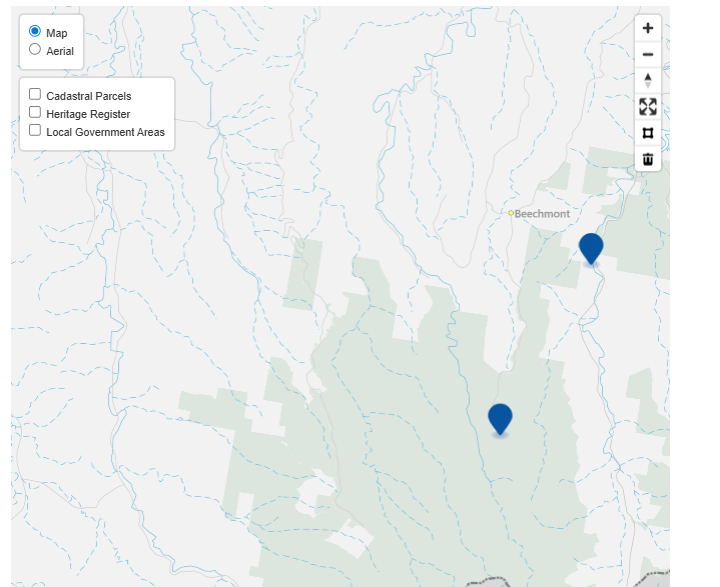 |
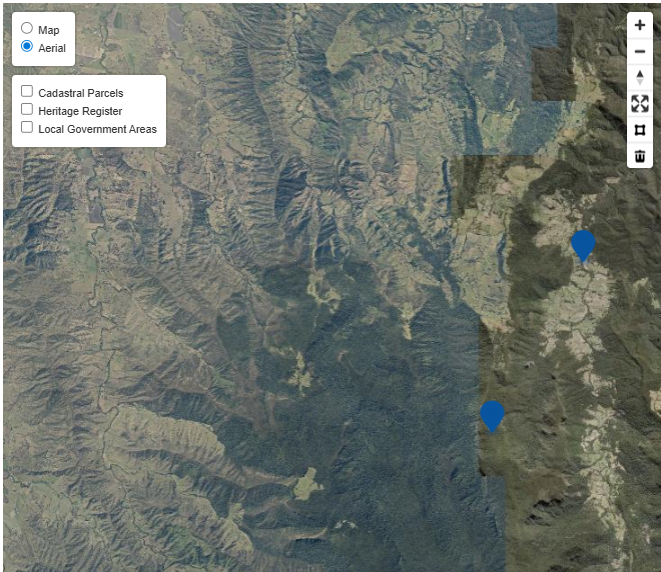 |
Coloured overlays
The following colour scheme represents different types of boundaries:
| Boundary Type | Colour Schemes for Boundaries |
|---|---|
| Cadastral Parcels: Displays property boundaries. This layer is scale-dependent, meaning it will only appear when you zoom in and will disappear when you zoom out. |
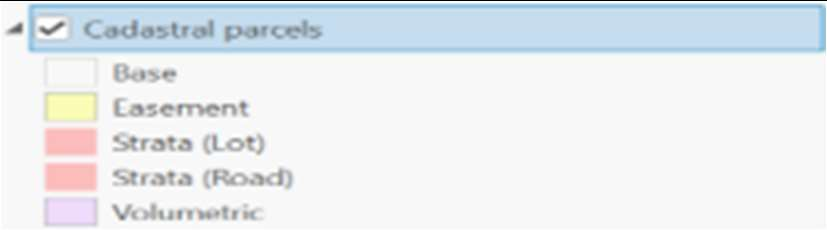 |
| Heritage Register: Pink polygons represent the boundaries of Queensland heritage register places. |
 |
| Local Government Areas: Displays the administrative boundaries of local government areas. |
 |
For more tips on navigating the spatial layers, please view our tutorial video on the website.
Why am I having issues displaying the website?
The map view page is optimised for use in the following browsers:
- Microsoft Edge 144
- Chrome version 145
- Safari 26
- Firefox 147
For mobile devices:
- IOS 15 and later models
- Samsung s21 and later models
- Google Pixel 6 and later models
How do I search the Queensland Heritage Register?
There are two methods to search for heritage places:
Using the ‘Search’ text box
Type directly into the search text box, and the map will automatically zoom to the heritage place or geographical area you are searching for. You can search for a specific heritage place, place type, lot on plan, suburb or local government areas. For example, when you enter the name of an item, several options become available, as outlined below.
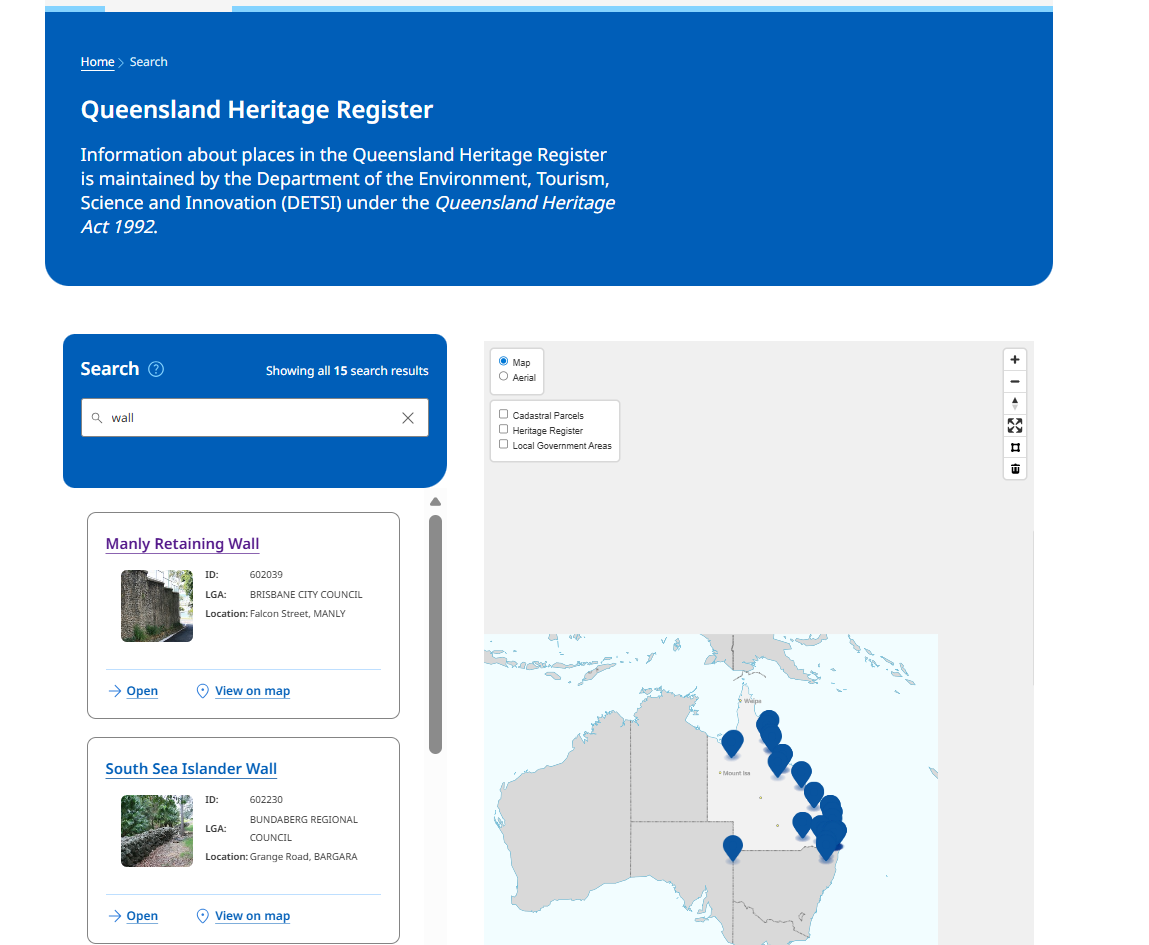
By navigating the map manually
You can explore the map by panning and zooming without using the search text box. To zoom in and out of the map, use the plus (+) and minus (-) buttons located at the top right corner of the map view. Alternatively, you can hold down the control button on your keyboard and scroll in and out using your mouse wheel. To pan, you can simply click on the map and drag your cursor around the map.
Can I download the details of a heritage place?
Yes, you can download the details of a heritage place. Once you can see the place you’re searching for in the search results, click ‘Open’. On the ‘Overview’ tab, you will see the ‘Download’ button on the top right side of the page. Click the button to download the relevant details for the heritage place in PDF format.
What map tools are available?
The map tools are located in the top-right corner of the map view. These tools help you interact with the map. The details are as follows:
| Tool | Name | Description |
|---|---|---|
| Zoom (+) or (-) | Buttons to zoom in and out of the map. |  |
| Reset View | Select the reset view button to return to the default full extent of the map. |  |
| Draw Polygon | Use this tool to search the heritage register by drawing a polygon on the map. The map will display all QHR places located within the drawn polygon. You can edit, resize, or move the polygon as needed. |  |
| Clear Selection Polygon | Use this tool to remove the polygon from the map view and clear the search. |  |
Where can I find information about the images on the Overview tab?
The caption is displayed when you select an individual image:
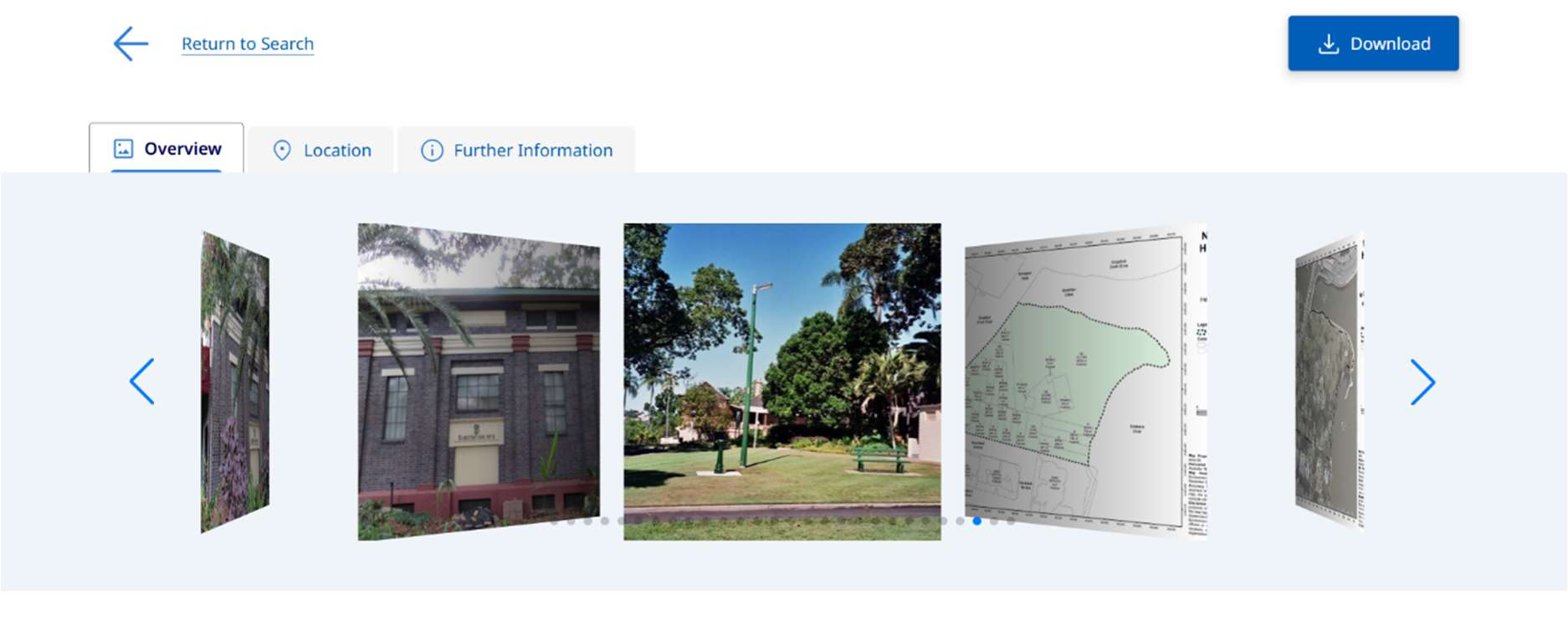
View images and click on the image that you are interested in.
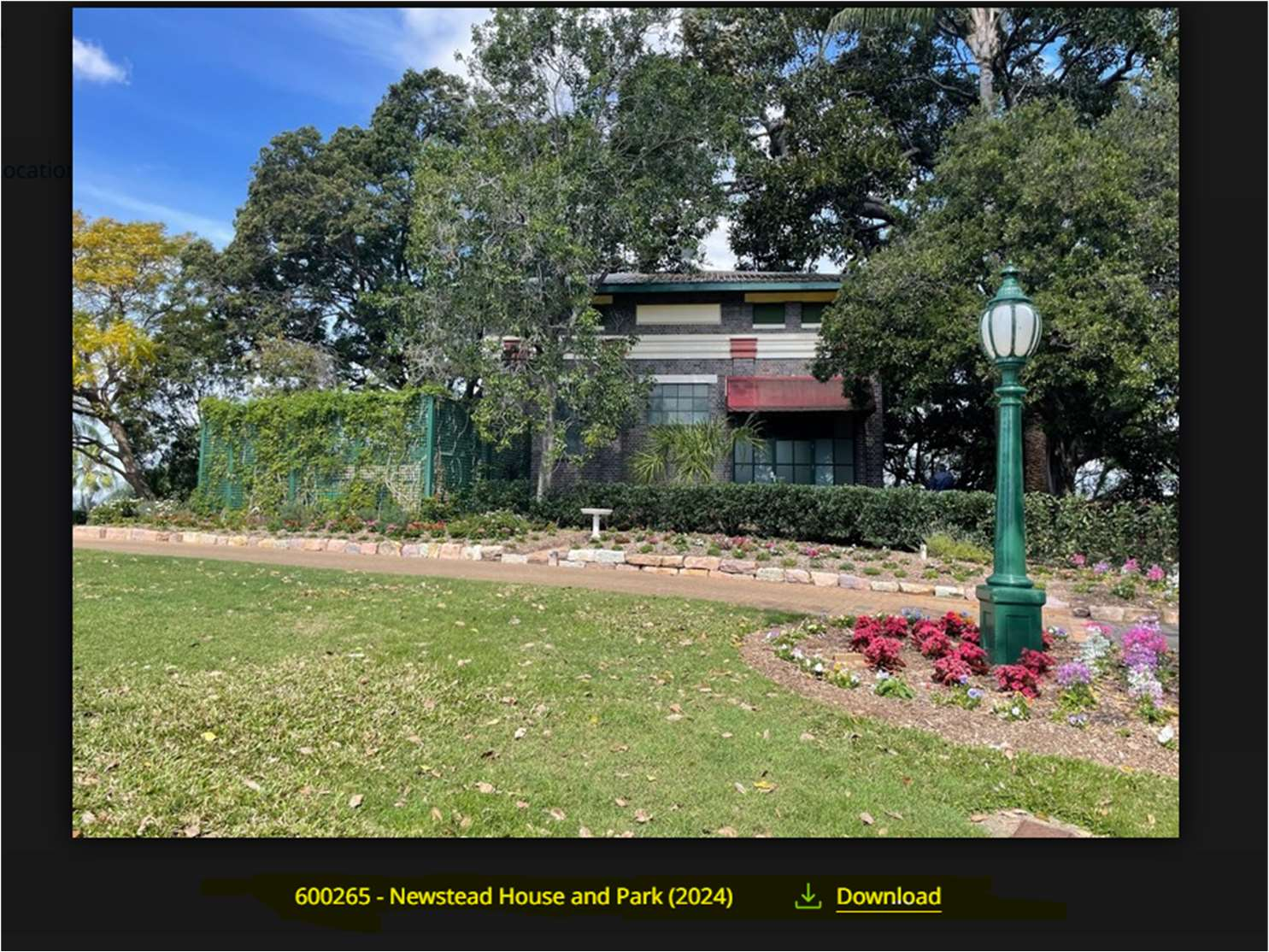
The caption for the selected image will be visible at the bottom of the image: